


Hub 2 can now be operated wirelessly - Wi-Fi provisioning in firmware 4.4.1
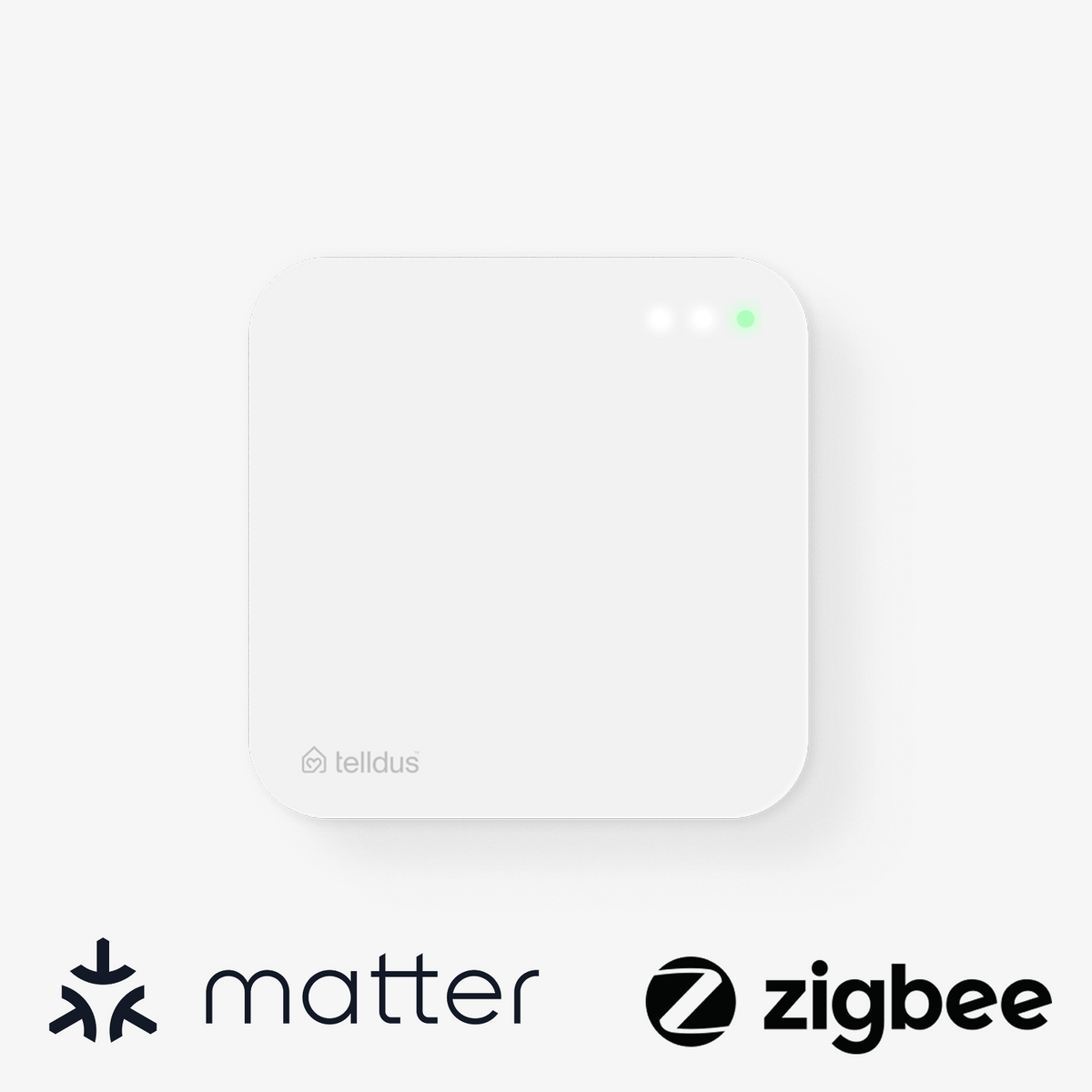
Until now, Hub 2 has required a network cable to the router. This works well when the router is in a convenient location, but that is far from being an option for everyone. With firmware 4.4.1, Hub 2 can instead be connected via Wi-Fi, meaning the hub can be placed where it is most useful in the home rather than where the cable happens to run.
Why placement matters
Hub 2 communicates with your Zigbee and Matter devices wirelessly. The range and stability of the network depend on where the hub is located, and a centrally located hub can reach more devices with fewer hops. When the hub was tied to the router's location, it often ended up in a corner of the home, in a cabinet, or in the basement. With Wi-Fi, you can move it to where it belongs.
Before you start
- The hub must be running firmware 4.4.1 or later.
- Have your Wi-Fi password ready.
- Bluetooth must be enabled on your phone, and the app must have permission to use Bluetooth. If the permission is missing, the app will not find the hub; check the app's permissions in your phone's settings.
- Stand within a few meters of the hub.
How it works
The setup is done through the app via Bluetooth. In short:
- Open hub 2 in the app and go to settings via the gear icon.
- Select Set up Wi-Fi.
- Prepare the hub: unplug the network cable, wait about 10 seconds, and then press the hub's button twice quickly.
- The app will find the hub via Bluetooth. Select your network and enter the password.
The reason the cable must be unplugged is simple: a hub that is already online does not listen for Bluetooth. Pressing the button puts it in a mode where it can accept the connection. You can then plug the cable back in immediately if you wish.
Good to know
- A single press does nothing, and a long press restarts the hub and may perform a factory reset. Keep both presses short.
- Once the hub has started listening, it will continue to do so, so you can try again without pressing the button again.
If the app does not find the hub
- Check that Bluetooth is enabled and that the app has Bluetooth permission.
- Move closer to the hub.
- Repeat step 3: press the hub's button twice quickly.
Installation and firmware
Wi-Fi provisioning requires firmware 4.4.1 or later. A new Hub 2 is always installed and initialized using a network cable. Once the hub is up and running and updated, you can switch it over to Wi-Fi. You can see which version your hub is running under Updates in the hub's settings.
If the network is lost
The hub behaves the same way on Wi-Fi as it does over a cable during an internet outage; there is no difference in how it reconnects or handles a lost connection.
Frequently asked questions
Why do I have to unplug the network cable?
A hub that is already online does not listen for Bluetooth. When the cable is unplugged, the hub can be accessed from the app.
Does the cable have to stay unplugged forever?
No. You can plug it back in immediately after pressing the button; the hub will continue to listen for Bluetooth.
Nothing happens when I press the button.
A single press does nothing. You should press the button twice quickly, about one second apart. If you hold the button down, the hub will restart instead and may perform a factory reset.
The app does not find the hub.
Check that Bluetooth is on and that the app has Bluetooth permission in your phone's settings, move closer to the hub, and repeat the two button presses.
Which firmware is required?
4.4.1 or later. You can see which version your hub is running under Updates in the hub's settings.
The rest of 4.4.1
Wi-Fi is the biggest news, but the update includes more, especially on the Matter side: more stable pairing, better communication between the hub and paired Matter devices, improved reconnection when a device comes back online, enhanced support for battery-powered devices and motion sensors, and security improvements.
One more feature that is ready in the firmware: backup and restore of both Zigbee and Matter devices to another Hub 2. If you replace a hub or need to move an installation, you will not have to pair each device manually. The feature will be activated when the app and backend support it.